Getting Started
The best and fastest way to get your hands dirty on Serenity is SERENE, which is a sample application template.
You have three options to install SERENE template:
Please check prerequisites below before trying to install Serene.
Prerequisites
Visual Studio Version
Serene requires Visual Studio 2019+ with most recent updates installed. .NET CORE 3.1 SDK is also only supported in Visual Studio 2019+.
An alternative option is to use command line to create projects and use Visual Studio Code if you don't have access to Visual Studio 2019+.
.NET Core SDK
If you are going to use ASP.NET Core version of Serene, please install .NET Core 3.1 SDK from:
https://dotnet.microsoft.com/download
Visual Studio TypeScript Extension
As of writing, the recommended version of TypeScript is 3.9.5. Serene comes with a reference to a recent version of Microsoft.TypeScript.MsBuild package and it is supposed to be used by Visual Studio 2019+ automatically.
You can get TypeScript extension for your Visual Studio version from http://www.typescriptlang.org/#download-links.
Latest version of TypeScript might probably work but keeping in sync with the version we currently use, can help you avoid compatibility problems that could come with them.
NodeJS / NPM
Serene uses NodeJS / NPM for these:
- TypeScript typings (.d.ts) for libraries like jQuery, Bootstrap etc.
- TypeScript compiler itself (tsc)
- Less compilation (lessjs)
It requires NodeJS v6.9+ and NPM 3.10+
Serene will check their versions on project creation and ask for confirmation to download and install them. Anyway, please check your versions manually by opening a command prompt:
> npm -v
3.10.10
> node -v
6.9.4
If you get an error, they might not be installed or not in path. Please install LTS (long term support) versions from https://nodejs.org/en/
Current version might also work but is not tested.
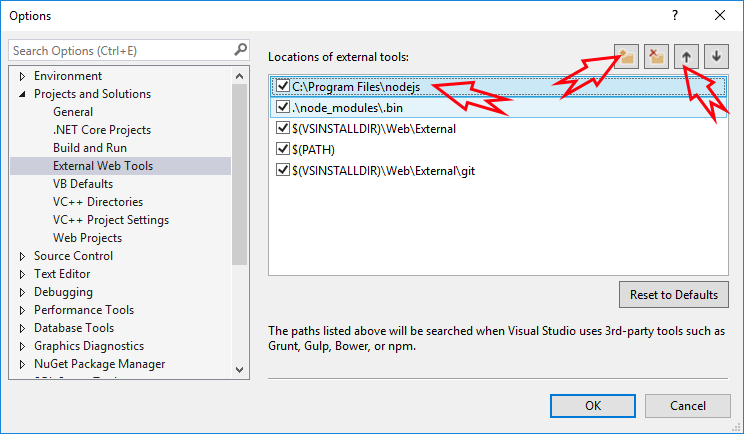
Visual Studio and External Web Tool Paths
Even if you have correct Node / NPM installed, Visual Studio might still be trying to use its own integrated, and older version of NodeJS.
Click Tools => Options, and then under Projects and Solutions => External Web Tools add C:\Program Files\nodejs to the top of the list by clicking plus folder icon, typing C:\Program Files\nodejs and using Up Arrow to move it to the start: